Installation And Upgrade
Whether you are installing a new instance of GenAI Studio or upgrading an existing version, please first ensure that the target host meets the hardware specifications listed in the Prerequisites and has Ubuntu installed. Then, proceed with the following steps in the order specified below.
If you are upgrading GenAI Studio, please stop all services of the existing GenAI Studio installation before proceeding with the upgrade. Just execute:
cd ~/Advantech/GenAI-Studio/bin
./app-down
Install NVIDIA GPU Driver
To run GenAI Studio properly on a host, the installed NVIDIA GPU driver version must be 580 or later. Therefore, if the host:
- already has an NVIDIA GPU driver installed and its version is newer than 580, you may skip this step and proceed directly to the Install CUDA.
- already has an NVIDIA GPU driver installed and its version is older than 580, please uninstall the existing one. Then proceed with the installation.
- no NVIDIA GPU driver is currently installed on, please install the driver directly.
Uninstall NVIDIA GPU Driver
- Open the terminal and execute the following commands to uninstall the
NVIDIA GPU driver.
sudo apt remove '^nvidia-*'sudo apt remove '^libnvidia*'
- Reboot the system.
sudo reboot
Install NVIDIA GPU Driver
-
Open the terminal and execute the following commands to install the NVIDIA GPU driver.
sudo apt updatesudo apt install nvidia-driver-580-open -
Reboot the system.
sudo reboot -
Verify the installation results.
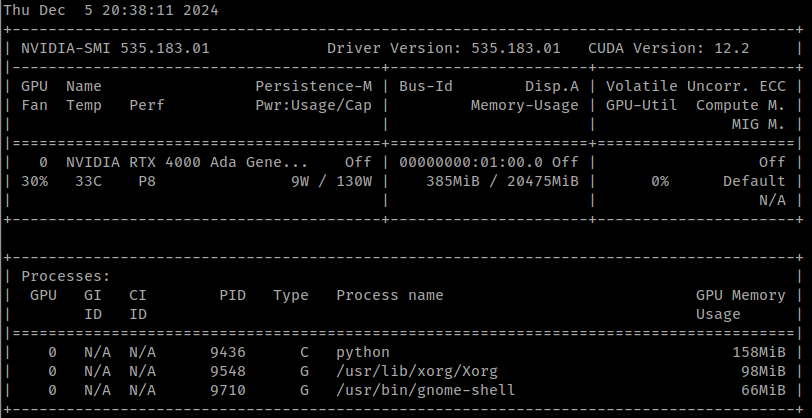
nvidia-smiAt this point, the terminal window should output information regarding the NVIDIA GPU (it should look similar to the image below, but the content will be different).
Install CUDA
In the terminal, execute the following commands to install CUDA 13.0.
wget https://developer.download.nvidia.com/compute/cuda/repos/debian12/x86_64/cuda-keyring_1.1-1_all.deb
sudo dpkg -i cuda-keyring_1.1-1_all.deb
sudo apt update
sudo apt install -y cuda-toolkit-13-0
There is no restriction for CUDA on installing multiple versions on the same
host. If an older version of CUDA is already installed, you can safely proceed
with the installation of the new one. If you still prefer to remove the
existing version first, run sudo apt list --installed | grep 'cuda-toolkit'
to identify the installed version, and then execute
sudo apt remove cuda-toolkit-<version> to uninstall it. Here, <version>
refers to the version number of the existing CUDA installation.
AI SSD Configuration
Since the Full Parameter Fine-tuning feature relies on the AI SSD hardware configuration, the AI SSD setup is indispensable if you wish to use this feature. For environments that do not require or need this feature, please skip this section.
If an earlier version of GenAI Studio has already been installed on the host and the AI SSD has been configured, you may also skip this section.
The configuration of the AI SSD depends on how many AI SSDs are available on the host. When there is more than one AI SSD in the host, it must be configured using LVM; however, if there is only one, it can be configured just like a general disk.
Multiple AI SSD Setup
-
Install LVM packages
sudo apt updatesudo apt install lvm2 xfsprogs -
Confirm the AI SSD mount path
lshw -class disk -class storage | grep -E 'ai100|logical name|version: EIFZ'lsblk | grep nvmeinfoConfirm whether the AI SSD device names are
nvme0n1andnvme1n1, etc. If not, please make necessary modifications to the relevant commands in the subsequent steps according to your actual environment. -
Wipe disks (just in case)
sudo wipefs -a /dev/nvme0n1 /dev/nvme1n1 -
Create LVM
sudo pvcreate /dev/nvme0n1 /dev/nvme1n1sudo vgcreate ai /dev/nvme0n1 /dev/nvme1n1sudo lvcreate --type striped -i 2 -I 128k -l 100%FREE -n ai ai -
Format LVM
sudo mkfs.xfs -f -s size=4k -m crc=0 /dev/ai/ai -f -
Mount LVM
sudo mkdir -p /mnt/nvme0sudo mount /dev/ai/ai /mnt/nvme0sudo chown -R $USER:$USER /mnt/nvme0warningThe
/mnt/nvme0in the above command is a fixed mount point; GenAI Studio monitors AI SSD usage based on this mount point. -
Persist the mount
echo '/dev/ai/ai /mnt/nvme0 xfs defaults,nofail 0 0' | sudo tee -a /etc/fstabinfoTo remove the permanent mount setting, execute:
sudo sed -i '/\/dev\/ai\/ai/d' /etc/fstab
If the LVM setup is successful, you should see a message similar to the image
below when executing the lsblk command.

If you need to remove the LVM configuration, please execute the following commands:
sudo umount /mnt/nvme0
sudo lvremove -y ai
sudo pvremove -y /dev/nvme0n1 /dev/nvme1n1 --force --force
Single AI SSD Setup
If there is only one AI SSD configured on the host, the setup is much simpler. Please follow the steps below.
-
Format AI SSD
sudo mkfs -t ext4 /dev/nvme0n1 -
Mount AI SSD
sudo mkdir -p /mnt/nvme0sudo mount /dev/nvme0n1 /mnt/nvme0sudo chown -R $USER:$USER /mnt/nvme0warningThe
/mnt/nvme0in the above command is a fixed mount point; GenAI Studio monitors AI SSD usage based on this mount point. -
Persist the mount
echo '/dev/nvme0n1 /mnt/nvme0 ext4 defaults,nofail 0 0' | sudo tee -a /etc/fstabinfoTo remove the permanent mount setting, execute:
sudo sed -i '/\/dev\/nvme0n1/d' /etc/fstab
Configure swap file
Enabling a swap file can provide additional memory for the DRAM. If GPU memory is still sufficient, this can extend the range of usable batch sizes. Please follow the steps below to configure it.
-
Create swap file
sudo dd if=/dev/zero of=/mnt/nvme0/swapfile bs=1M count=256k -
Modify permissions
sudo chmod 0600 /mnt/nvme0/swapfile -
Initialize
sudo mkswap /mnt/nvme0/swapfile -
Enable swap file
sudo swapon /mnt/nvme0/swapfile -
Persist swap file
echo '/mnt/nvme0/swapfile none swap sw 0 0' | sudo tee -a /etc/fstab
If you want to remove the swap file, please ensure you follow the steps below to prevent unexpected system issues.
sudo swapoff /mnt/nvme0/swapfile
sudo sed -i '/\/mnt\/nvme0\/swapfile/d' /etc/fstab
sudo rm /mnt/nvme0/swapfile
Install Docker
If Docker is already installed on the host, you only need to verify that the
currently logged-in user account belongs to the docker group.
-
Execute the following commands to uninstall all packages that may cause conflicts:
for pkg in docker.io docker-doc docker-compose docker-compose-v2 podman-docker containerd runc; do sudo apt-get remove $pkg; doneapt-getmight report that you do not have these packages installed. -
Set up Docker's apt repository.
# Add Docker's official GPG key:sudo apt-get updatesudo apt-get install ca-certificates curlsudo install -m 0755 -d /etc/apt/keyringssudo curl -fsSL https://download.docker.com/linux/ubuntu/gpg -o /etc/apt/keyrings/docker.ascsudo chmod a+r /etc/apt/keyrings/docker.asc# Add the repository to apt sources:echo "deb [arch=$(dpkg --print-architecture) signed-by=/etc/apt/keyrings/docker.asc] https://download.docker.com/linux/ubuntu $(. /etc/os-release && echo "$VERSION_CODENAME") stable" | \sudo tee /etc/apt/sources.list.d/docker.list > /dev/nullsudo apt-get update -
Install Docker-related packages.
sudo apt-get install docker-ce docker-ce-cli containerd.io docker-buildx-plugin docker-compose-plugin -
Add user to the
dockergroup.sudo usermod -aG docker "$(id -un)" -
Verify the installation.
docker run hello-worldThis command downloads a test image and runs it in a container. When the container runs, it prints a confirmation message and exits.
Install NVIDIA Container Toolkit
This step must be performed whenever the NVIDIA GPU driver on the host has been modified, whether through a fresh installation or an upgrade.
-
Configure the apt repository.
curl -fsSL https://nvidia.github.io/libnvidia-container/gpgkey \| sudo gpg --dearmor -o /usr/share/keyrings/nvidia-container-toolkit-keyring.gpg \&& curl -s -L https://nvidia.github.io/libnvidia-container/stable/deb/nvidia-container-toolkit.list \| sed 's#deb https://#deb [signed-by=/usr/share/keyrings/nvidia-container-toolkit-keyring.gpg] https://#g' \| sudo tee /etc/apt/sources.list.d/nvidia-container-toolkit.list -
Update the package list from the repository.
sudo apt-get update -
Install the NVIDIA Container Toolkit package.
sudo apt-get install -y nvidia-container-toolkit -
Use the
nvidia-ctkcommand to configure the container runtime environment.sudo nvidia-ctk runtime configure --runtime=docker -
Restart Docker service.
sudo systemctl restart docker
Install GenAI Studio
GenAI Studio provides an installer to allow users to install it easily. Typically, all you need to do is download it and then run it.
The installer will automatically detect whether an older version of GenAI Studio is installed on the host. If it is, the installer will automatically proceed with the upgrade process instead.
Before starting installation, please ensure there is sufficient disk space. As mentioned in the Storage Space content, to ensure GenAI Studio installs smoothly, we recommend having at least 186 GiB (approx. 200GB) of available disk space.
Please download the GenAI Studio installer from here.
The file name follows the format GenAI-Studio_<version>_setup.run. Copy the
installer to the host you want to install on, then simply execute the file in
the directory where the installer is located and answer relevant questions
during the process. The installer will then install GenAI Studio into the
Advantech/GenAI-Studio directory under the user home directory ($HOME).
Everything is just that simple and intuitive.
- If a command not found error occurs when running the installer,
please try executing it in the installer's directory using
./GenAI-Studio_<version>_setup.run. - If a Permission denied error occurs when running the installer,
please try executing
chmod 0755 GenAI-Studio_<version>_setup.runin the directory where the installer is located to grant execution permissions to the file before running it again.
Start GenAI Studio
If everything goes smoothly, GenAI Studio should be installed in the
$HOME/Advantech/GenAI-Studio directory. Execute the following commands
to start GenAI Studio.
cd ~/Advantech/GenAI-Studio/bin
./app-up
If it is the fresh installation, GenAI Studio needs more time to perform system
initialization. After a maximum of about 1 minute, open a browser and point the
URL to the installation host with port 3001 to open the GenAI Studio portal.