System Prompt Variables
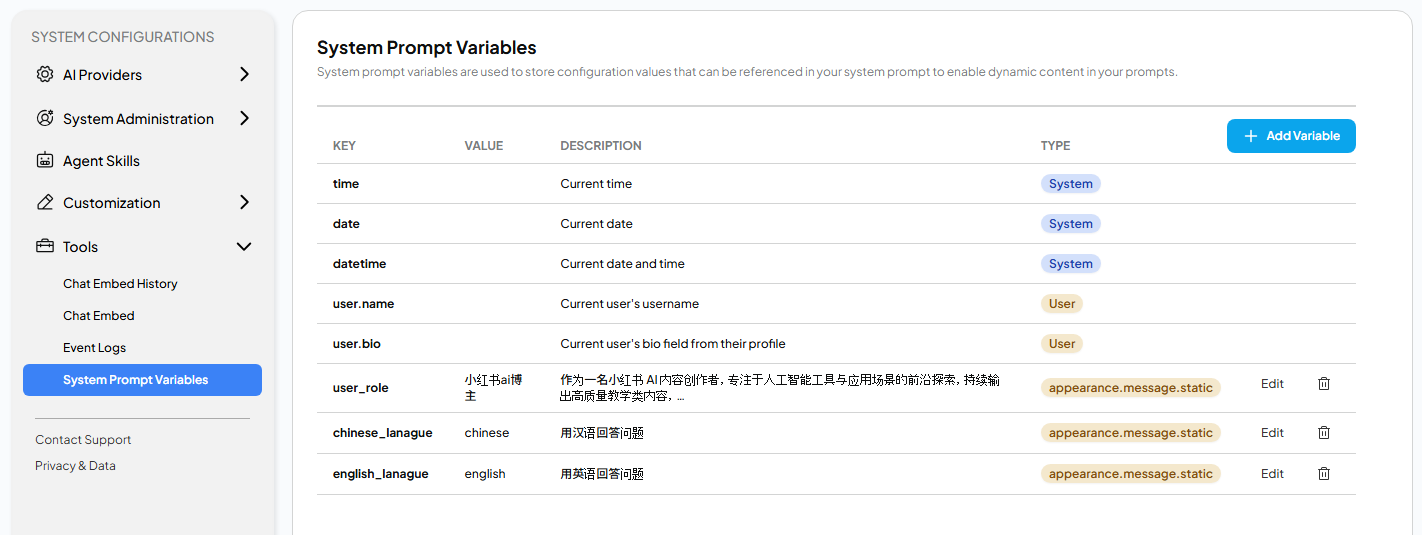
GenAI Studio provides 5 predefined system prompt variables for users to quickly access:
time: The system will automatically convert this variable into the current time, e.g.,1:34:26 PM.date: The system will automatically convert this variable into the current date, e.g.,April 17, 2026.datetime: The system will automatically convert this variable into the current date and time, e.g.,Friday, April 17, 2026 1:36 PM.user.name: The system will automatically convert this variable into the user's name.user.bio: The system will automatically convert this variable into the user's bio.
To use these predefined variables in the system prompt, simply place the
variable name inside a pair of curly braces ({ }), for example,
{user.name} will be replaced with the user's name.
In addition to the predefined system variables, users can define their own variables for commonly used system prompts according to their needs. Once saved, they can be used directly in the system prompts.
Add Variable
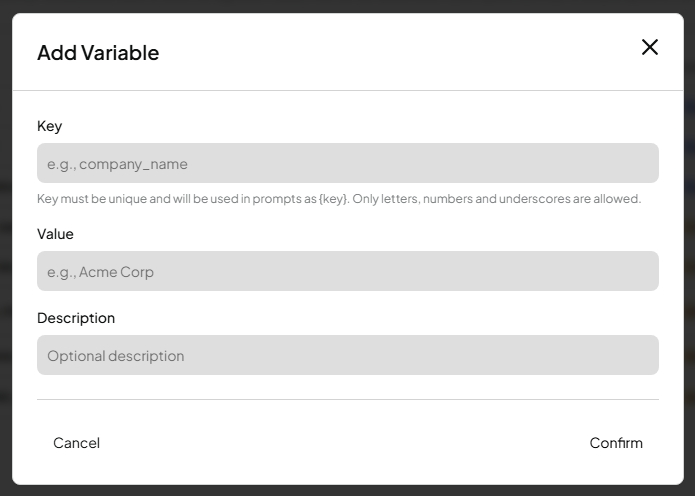
To add a prompt variable, please click the Add Variable button at the top right of the page, and an Add Variable window will appear.
-
Key: Enter the variable name to be used. The variable name must comply with the following rules:
- Only English letters, numbers, and underscores are allowed.
- Must be at least 3 characters and at most 255 characters in length.
- The name cannot start with
system.oruser.. - The name must be unique.
-
Value: Enter the value representing the variable.
-
Description: Optional. Briefly describe the purpose of this variable.
Edit Variable
To modify an existed prompt variable, simply click the Edit function on the right side of the row, and make the modifications in the opened edit window.
Delete Variable
To delete an existed prompt variable, simply click the trash can icon on the right side of the row.
Predefined system prompt variables cannot be edited or deleted.