Branding & Whitelabeling
-
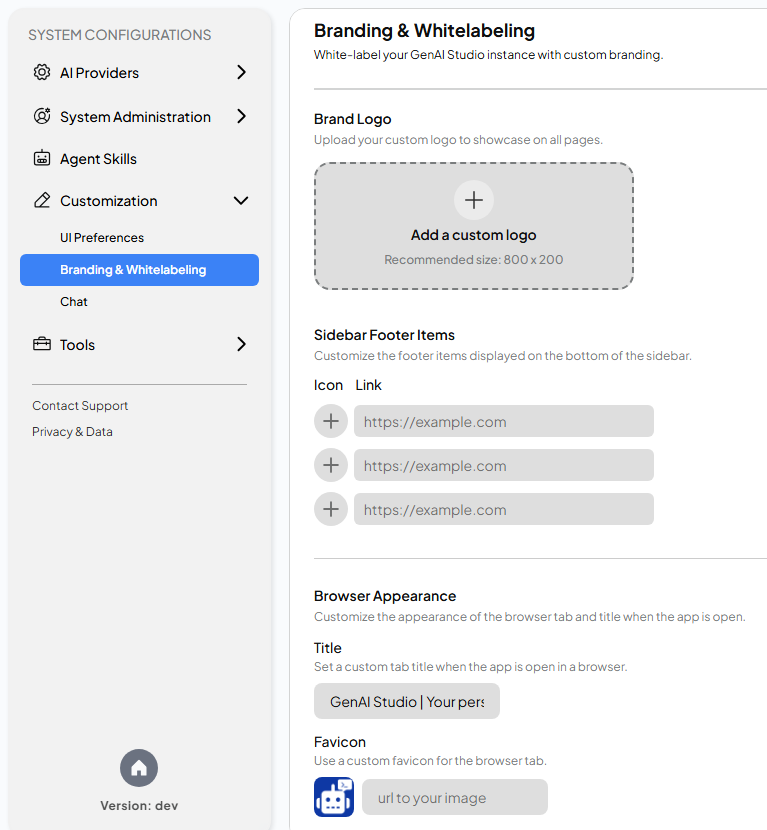
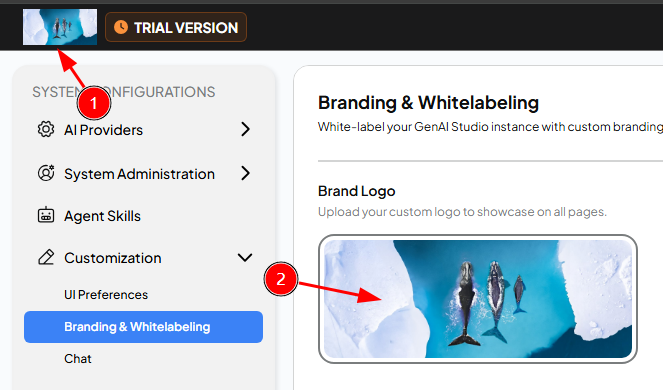
Brand Logo: You can upload a custom brand image. Move your mouse to the Add a custom logo feature card and click inside the highlighted area. Select the image file representing your brand in the opened file selection window. The uploaded brand image will replace the original GenAI Studio brand image and be displayed in the top left corner of the overall page (indicated by ① in the figure below). At this point, the display area of the feature card should be covered by your brand logo (indicated by ② in the figure below).
 tip
tipAs explained in the feature card, it is recommended to upload a brand image with a resolution of 800 x 200 for the best display effect.
Now, move your mouse again to the original Add a custom logo feature card area. The area that should have been covered by the brand logo is now covered with a highly transparent overlay, displaying two clickable functions: Replace and Remove.
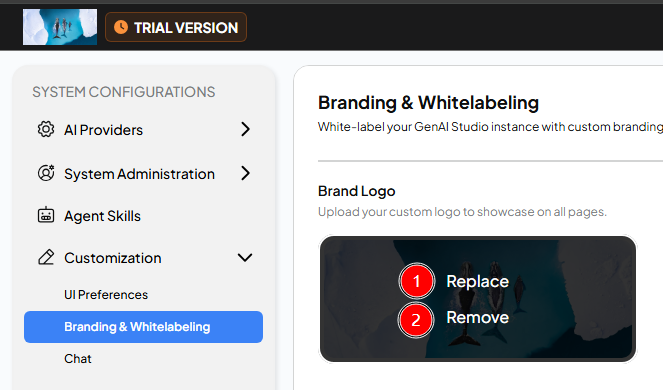
- Replace: Click this function to select a new brand image for replacement.
- Remove: Click this function to remove the current brand image. After removal, the brand image in the top left corner will revert to GenAI Studio logo.
tipIf the image in the top left corner of the page does not update immediately after the brand logo is replaced or removed, you can directly press F5 to reflect the update immediately.
-
Sidebar Footer Items: The so-called Sidebar Footer Items refer to the area outlined with red lines in the figure below.
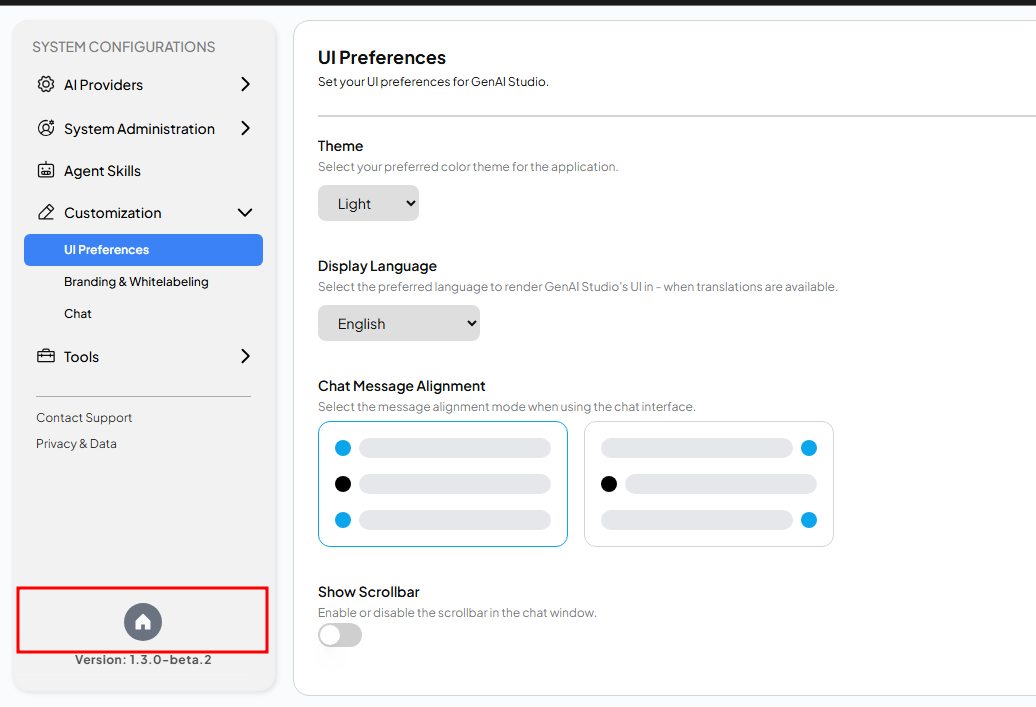
Each link within this area is displayed as a circular icon. By default, GenAI Studio only displays a house icon button in this area that allows users to quickly return to the homepage. You can expand this area according to your actual needs to display more links related to your business or work, but you can add a maximum of three.
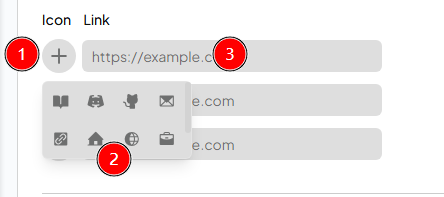
- Click the ㊉ symbol in the field corresponding to Icon.
- Select your desired icon from the dropdown menu.
- Enter your desired link in the Link field.
- Click the blue Save text displayed to the right of the item to save
and apply the changes.

- To remove a previously added link, click the X symbol on the right
side of the item.

Please NoteSome GenAI Studio pages do not display the sidebar.
-
Title: Set the tab title for GenAI Studio when opened in a browser.
-
Favicon: Set the website icon for GenAI Studio in the browser tab.
noteCurrently, this function only supports online image icons. Therefore, you must first place the icon you want to use in an accessible URL path, and enter that URL path into this field.